

Using Kaggle Datasets Directly in Google Colab (Without Manual Downloads)
Many students believe that using Kaggle datasets in Google Colab is difficult.
They usually follow a long and frustrating process:
Download dataset from Kaggle
Upload it to Google Drive
Mount Drive in Colab
Extract files
Fix directory paths
For large datasets, this wastes time, bandwidth, and effort.
In reality, Google Colab can download Kaggle datasets directly using only 3 lines of code.

❌ The Common Misunderstanding
A very common misconception is:
“I need to create a Kaggle API first.”
❌ This is NOT true.
You do not need to create anything manually.
You only need:
✔️ A Kaggle account
Your credentials are already available inside your Kaggle profile.
The 3-Line Solution (Direct Kaggle → Colab)
#Just change the link for your prefered dataset
!pip -q install opendatasets

import opendatasets as od
od.download("<https://www.kaggle.com/datasets/abdallahhalidev/plantvillage-dataset>")
#link changable
Once you run this cell, Colab automatically connects to Kaggle.
What Happens During Runtime?
When you run the code, Colab will pause and ask for your Kaggle credentials.
You’ll see two input fields:
Your username
Your account number / access key

⚠️ This is where many students panic — but it’s actually very simple.
Where to Find These Details (No API Creation Needed)
You don’t need to generate anything.
You just need to copy the existing information from your Kaggle account.
Follow these steps:
Log in to kaggle.com
Click your profile picture
Go to Account
Scroll to the account details section
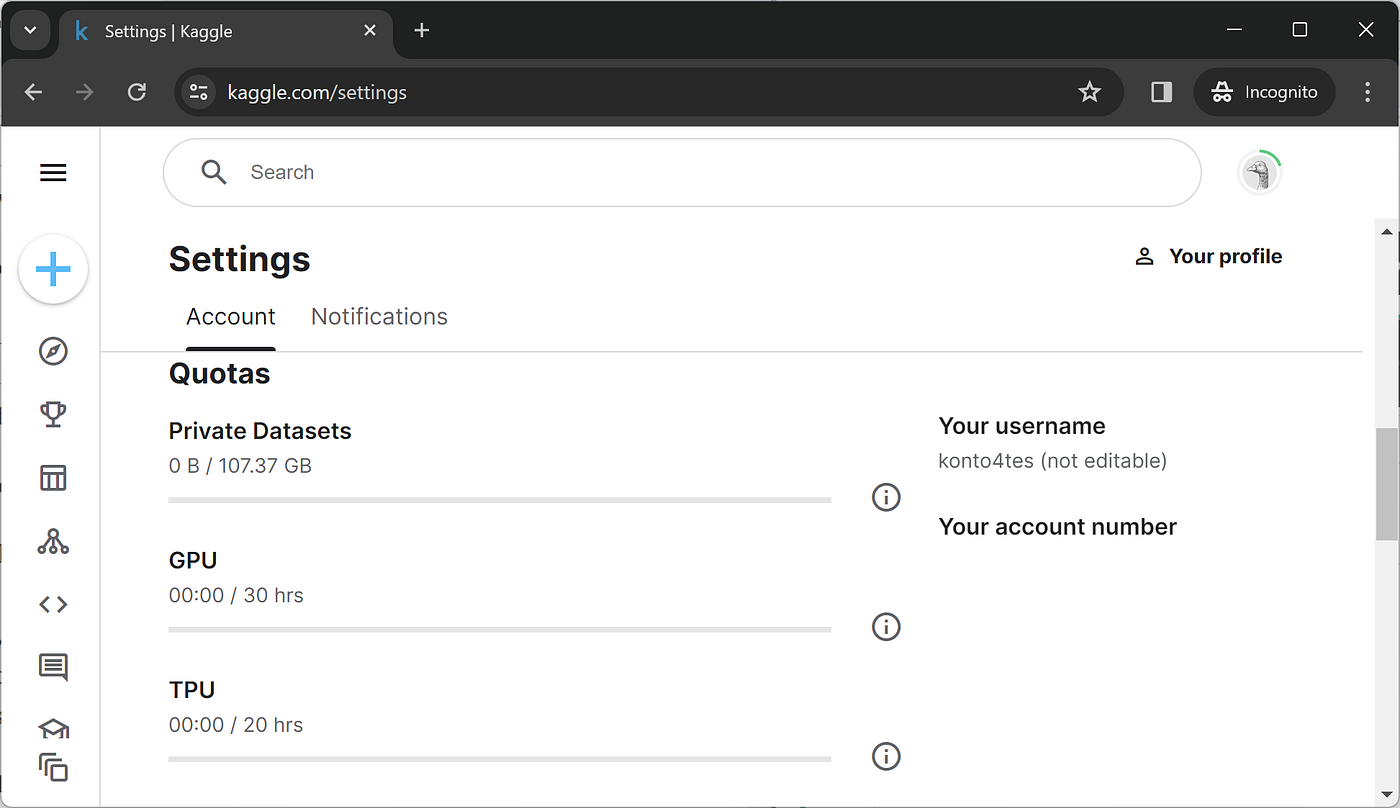
You will see:
Username
Account number / access key
👉 Simply copy and paste these values into Colab when prompted.
That’s it. No downloads. No setup.
Where Is the Dataset Stored in Colab?
After successful authentication, the dataset is downloaded automatically into the Colab runtime.
Example directory:
/content/plantvillage-dataset/ # this is a demo folder of the dataset.
# use the folder name in your dataset
You can verify it using:
!ls
Or open the Files panel on the left side of Colab.
Why This Method Is Better for Students
| Method | Difficulty | Time | Storage |
|---|---|---|---|
| Manual download & upload | High | Slow | Inefficient |
| Google Drive upload | Medium | Slow | Limited |
| Direct Kaggle → Colab | Very Easy | Fast | Efficient |
This approach is perfect for:
Computer Vision datasets
Deep learning projects
Academic assignments
Experiments and research work
Important Notes for Beginners
Credentials are requested only during runtime
You don’t store them in code
Session-based and temporary
Safe for learning and coursework
Key Takeaway
You don’t need to download Kaggle datasets manually.You don’t need to create an API.Your Kaggle account already has what you need.
Just paste the dataset link, run the code, and Colab does the rest.
References
Kaggle
Kaggle Account & Dataset Access
Google Colab
Colab Documentation
OpenDatasets
OpenDatasets GitHub Repository
Towards Data Science
Using Kaggle Datasets in Colab


